
DirectAdmin: Creating new email account

Please follow the steps below to create your email account in DirectAdmin control panel.

* Please replace yourdomain.com with your actual domain name.

1. Login to your DirectAdmin control panel (EG. http://yourdomain.com/da).
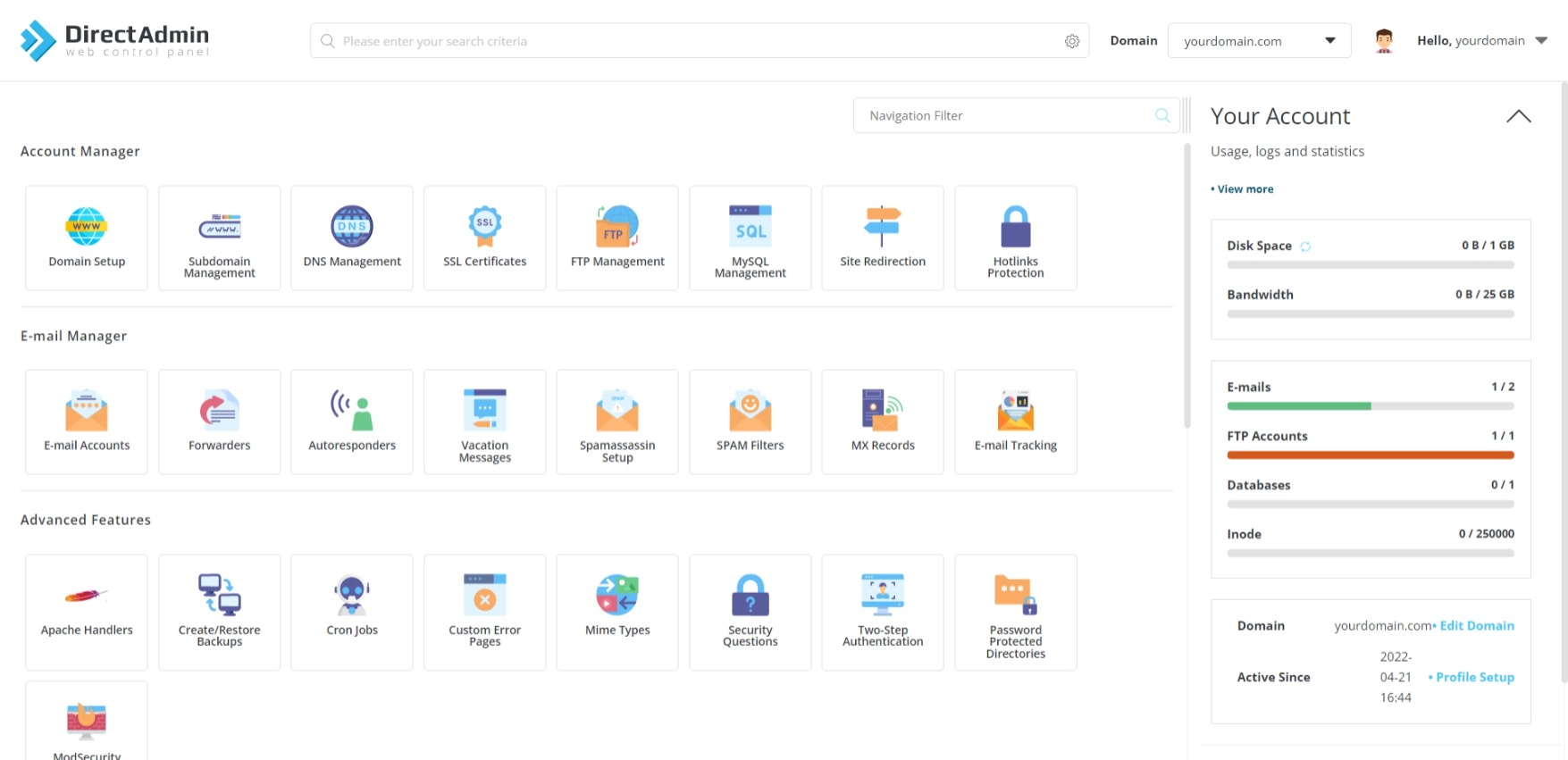
2. Under "E-mail Manager", choose E-mail Accounts.

3. Click Create Account.
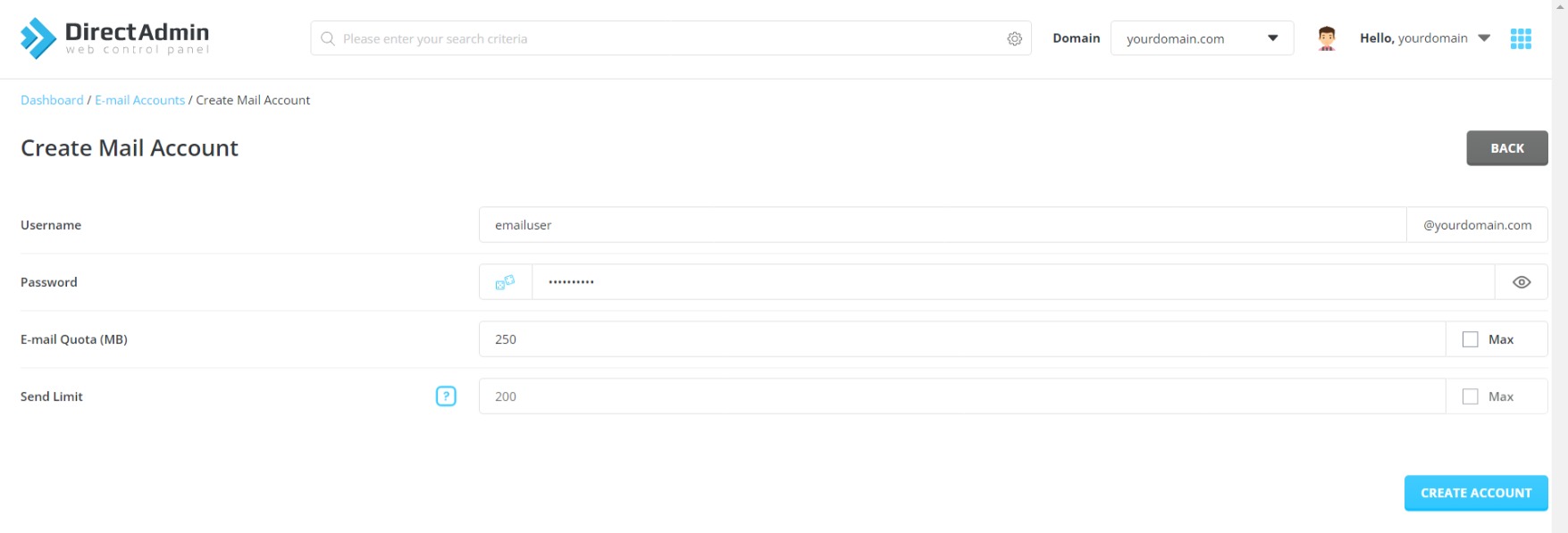
4. Under "Create Mail Account", fill in the following information.

Username: [ENTER THE NEW EMAIL USER] @yourdomain.com
Password: [ENTER EMAIL PASSWORD]
E-mail Quota (MB): [SET QUOTA FOR MAILBOX]

5. Click Create Account to start creating the email account.

A window "Account Created" containing configuration details for email application will popup once email account is successfully created.
The newly created email account will now appear in the E-mail Accounts list.


  • 0 Users Found This Useful
Was this answer helpful?

Related Articles

cPanel: Email account forwarders

Email forwarder allows email user to automatically redirect incoming emails from one email...

cPanel: Delete email accounts

Please follow the steps below to delete Email Accounts:1. Login to your hosting control panel...

SolidCP & MSPControl: Email forwarding

Email forwarder allows email user to automatically redirect incoming emails from one email...

DirectAdmin: Change email password

Please follow the steps below to reset or change email password in DirectAdmin control panel. *...

DirectAdmin: Creating email forwarders

Please follow the steps below to create email forwarders in DirectAdmin control panel. * Please...