
Email administrators can enable permission for respective email users to view incoming mails list and manage mails that are filtered by the spam filtering.
Permissions available including viewing incoming log, adding sender to allow/block list, release mail from spam quarantine and more.
Each user can view the log of mails sent to them only.
Below are the steps to create users to access spam filter service.
1. Login to the spam filtering service.
2. Go to "Users & Permissions" > "Manage email users".
3. Click Add.

4. Fill in the information as follows:
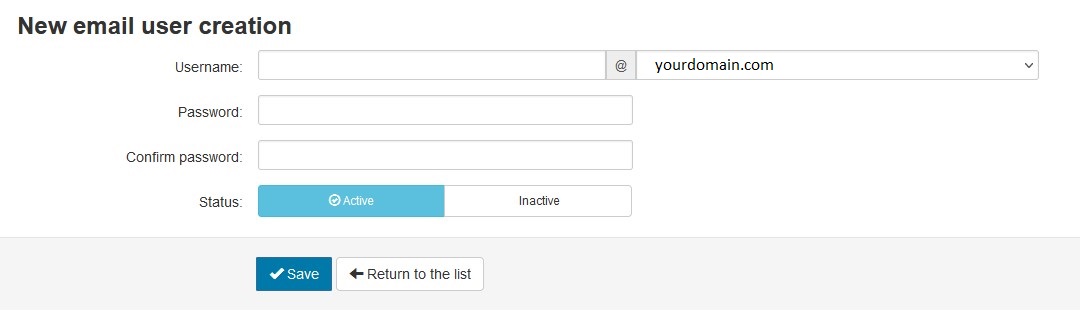
Username: [FOLLOW ACTUAL USERNAME IN CONTROL PANEL] @yourdomain.com
Password: [ENTER PASSWORD TO ACCESS SPAM FILTER]
Confirm Password: [RE-ENTER PASSWORD TO ACCESS SPAM FILTER]
Status: Active
5. Click Save to create the user.
* Choose from the drop-down menu to replace "yourdomain.com" with your actual domain.