
SSL certificate is essential nowadays to boost users confidence when visiting a site.
On your cPanel, you may check the SSL/TLS status for respective domain name, whether SSL certificate has been installed successfully or not.
The green icon  indicates that SSL certificate has been installed successfully on the domain name.
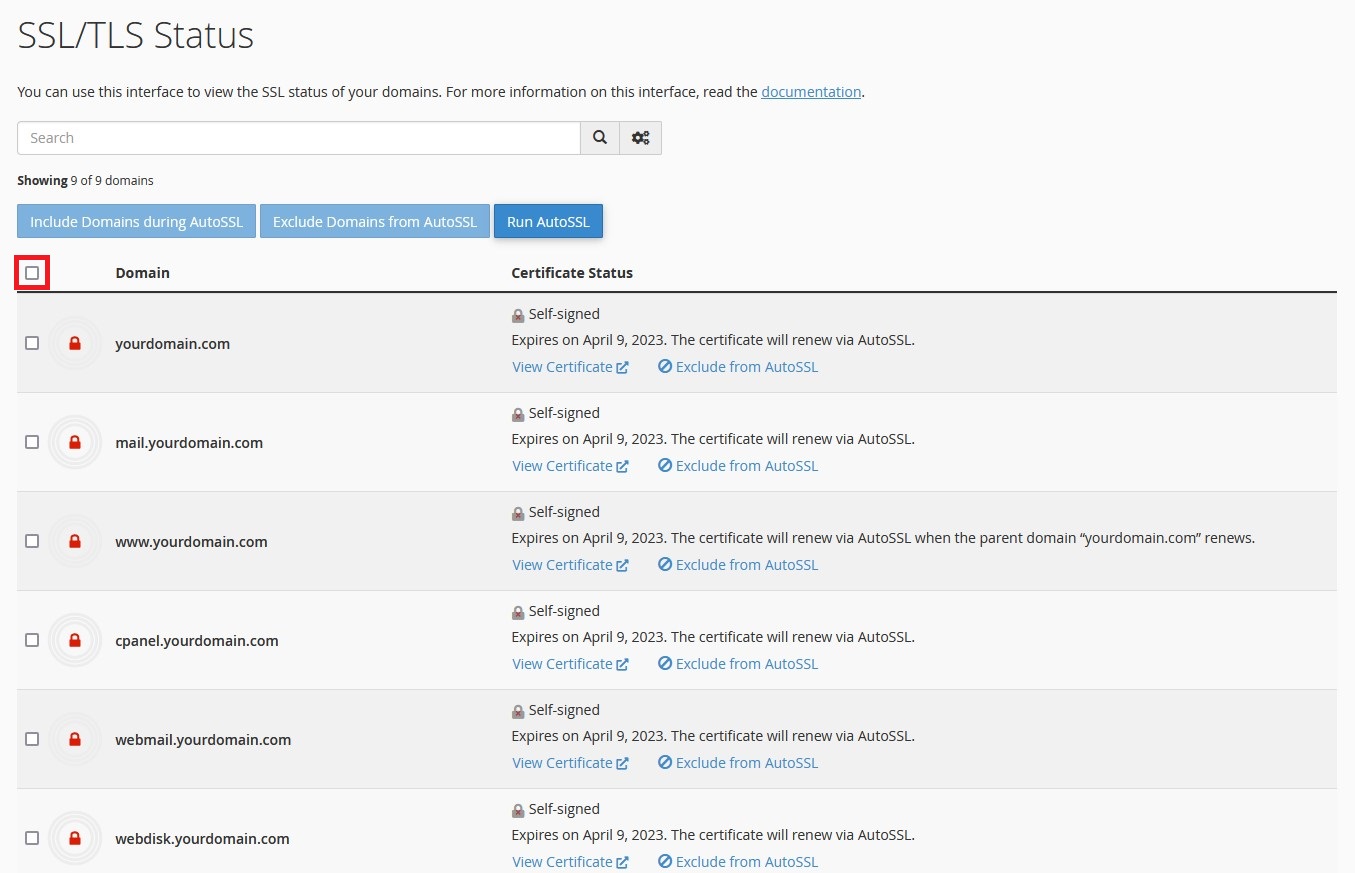
Whereas the red icon  indicates that SSL certificate is not installed on respective domain name/subdomain.
The domain name must be pointed to the server and has fully propagated in order for the SSL certificate installation to be successful.
Please refer to the steps below to install SSL certificate from control panel.
1. Login to your hosting control panel (EG. http://yourdomain.com/cpanel).
2. Click SSL/TLS Status icon under "Security" section.
3. Click on the checkbox to select all domain name.
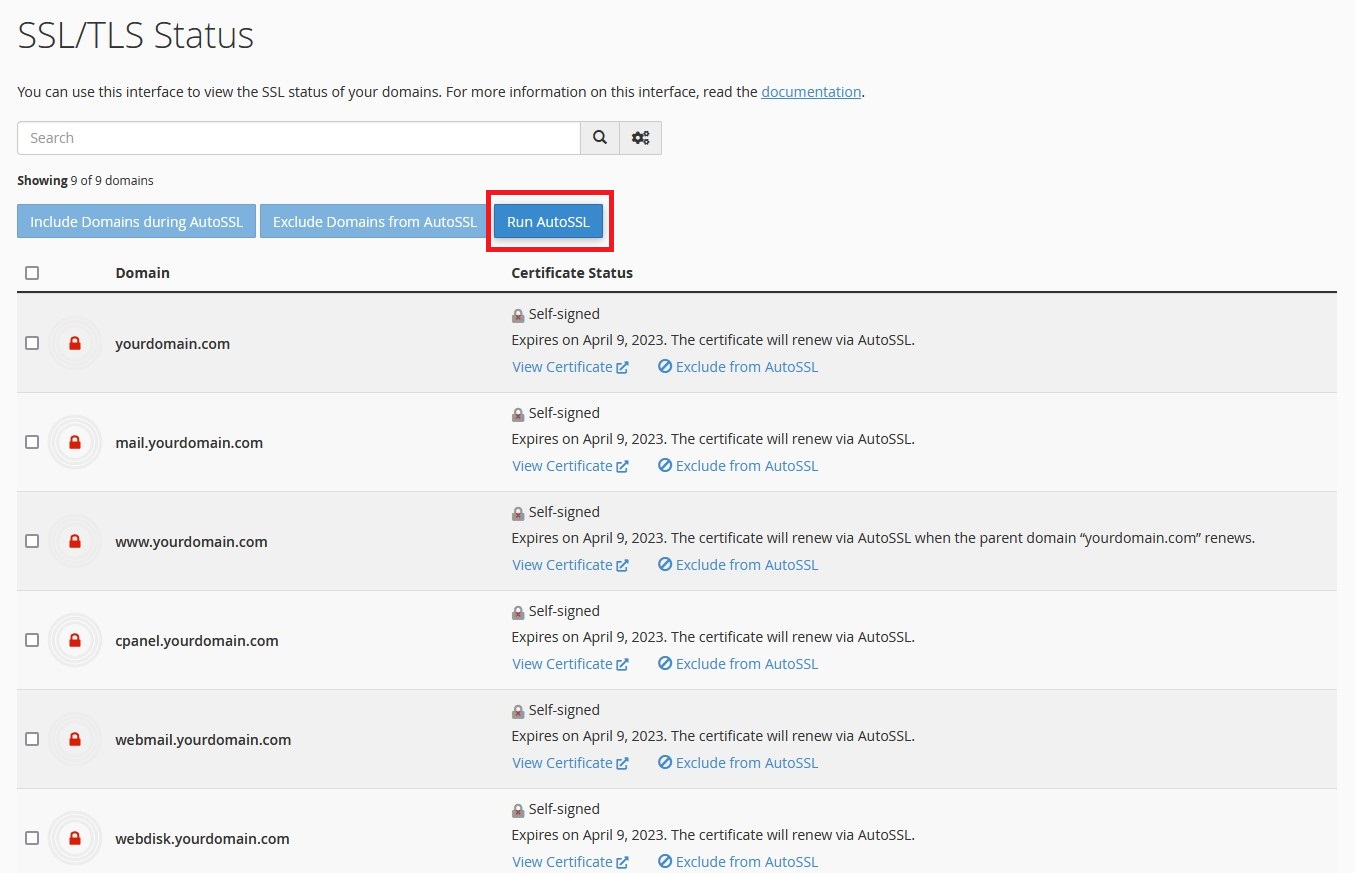
4. Click on Run AutoSSL to install the SSL certificate.
Note: Installing SSL certificate on the domain name does not mean that the website will be forced to HTTPS automatically.
In case you need to manually force the website from HTTP to HTTPS, please refer to the following article.
Force Website from HTTP to HTTPS using htaccess in Linux