
cPanel: Change PHP Version via MultiPHP Manager

You can assign specific PHP version for your website, or change it to a newer PHP version to fulfill your script requirement.
Please follow the steps below to change the PHP version for your website.

1. Login to your hosting control panel (EG. http://yourdomain.com/cpanel).
2. Click MultiPHP Manager icon under "Software" section.
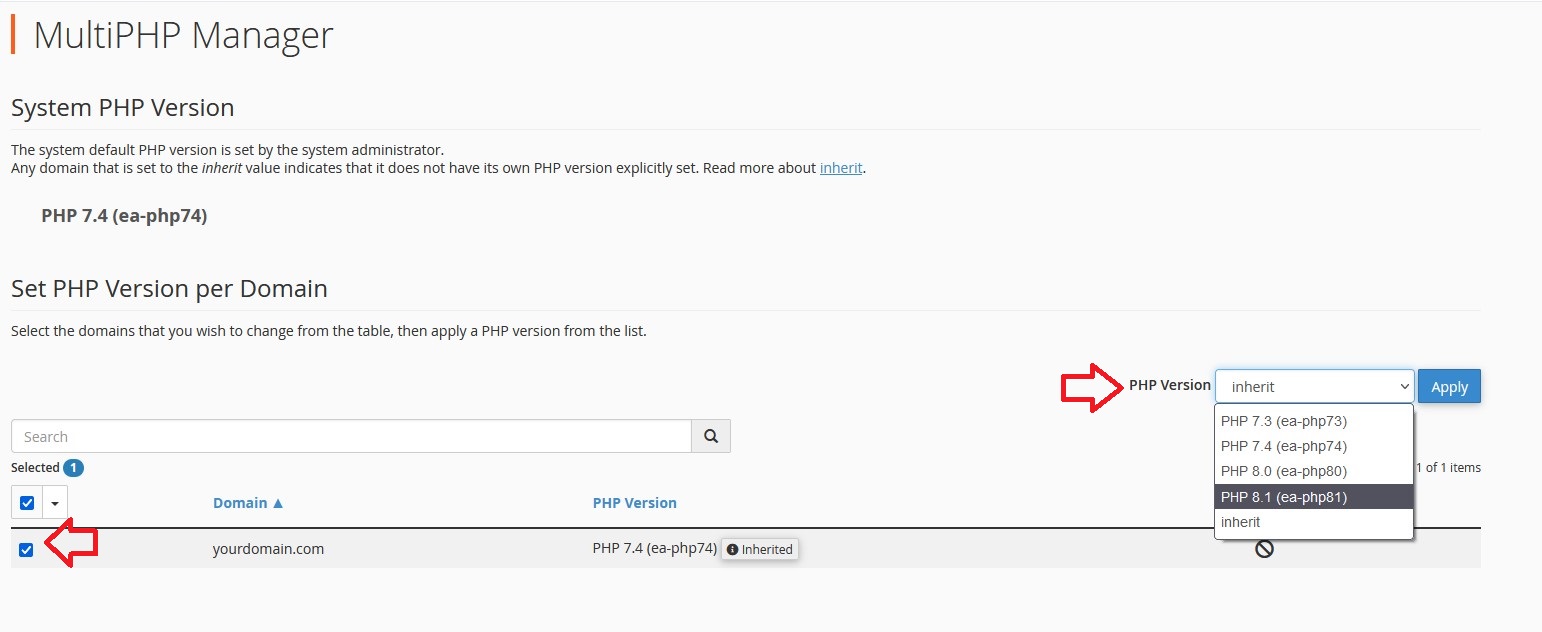

3. Tick on the checkbox beside the domain name.
4. Select the PHP version from "PHP Version" section.
5. Click Apply to save the changes.

Note: Inherit indicates that the website follows the default PHP setting on the server.
Please replace yourdomain.com with your actual domain name.

  • 0 Users Found This Useful
Was this answer helpful?

Related Articles

Website transfer requirement

Website transfer is a process to transfer your website content from your current hosting provider...

SolidCP & MSPControl: Set website default first page

The default page is the first page that will be display when a user visit your website.Please...

cPanel: Change PHP Version via Select PHP Version

With Select PHP Version (also known as PHP Selector), you can change PHP version and enable...

PHP Fatal error: Cannot redeclare quoted_printable_encode()

When encounter the following PHP error:PHP Fatal error:  Cannot redeclare...

Browse a website with hosts file

During server migration or transfer, you might want to test your websites in new server to ensure...