
cPanel: Change PHP Version via Select PHP Version

With Select PHP Version (also known as PHP Selector), you can change PHP version and enable specific options or extensions for your website.
Please follow the steps below to change the PHP version for your website.

1. Login to your hosting control panel (EG. http://yourdomain.com/cpanel).
2. Click Select PHP Version icon under "Software" section.
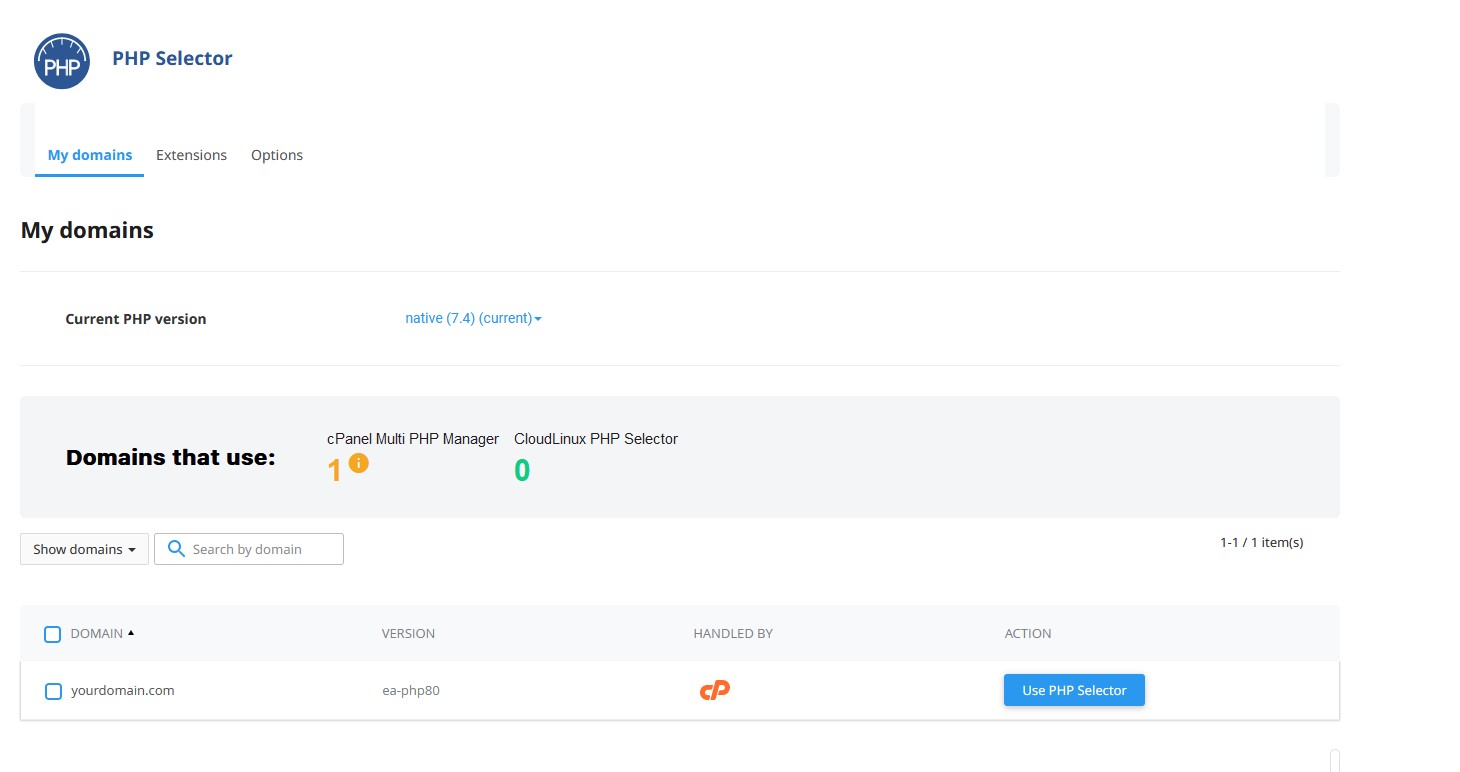

3. Under "Action", click Use PHP Selector.
4. A popup will appear, click Confirm.
5. Click Apply to save the changes.
6. Select your desired PHP version from "Current PHP version".
7. Click Set as current to save the changes.

You may personalize the PHP options and extensions by navigating to Extensions tab and Options tab.

Note: Please note that this feature is not available by default, please contact our support team for further enquiry regarding this feature.

  • 0 Users Found This Useful
Was this answer helpful?

Related Articles

SolidCP & MSPControl: Creating website

Please follow the steps below to create your website.1. Log in to your hosting control panel at...

SolidCP & MSPControl: Changing web extensions

Please follow the steps below to change your website extension.1. Log in to your hosting control...

Why Use Latest PHP Versions

Each PHP version has lifespan, in which is actively supported within certain period of time after...

Browse a website with hosts file

During server migration or transfer, you might want to test your websites in new server to ensure...

Convert .htaccess rewrite rules to web.config

You can use the Import Rules function in IIS to import rewrite rules coding from .htaccess file...