
cPanel: Change PHP Version via Select PHP Version

With Select PHP Version (also known as PHP Selector), you can change PHP version and enable specific options or extensions for your website.
Please follow the steps below to change the PHP version for your website.

1. Login to your hosting control panel (EG. http://yourdomain.com/cpanel).
2. Click Select PHP Version icon under "Software" section.
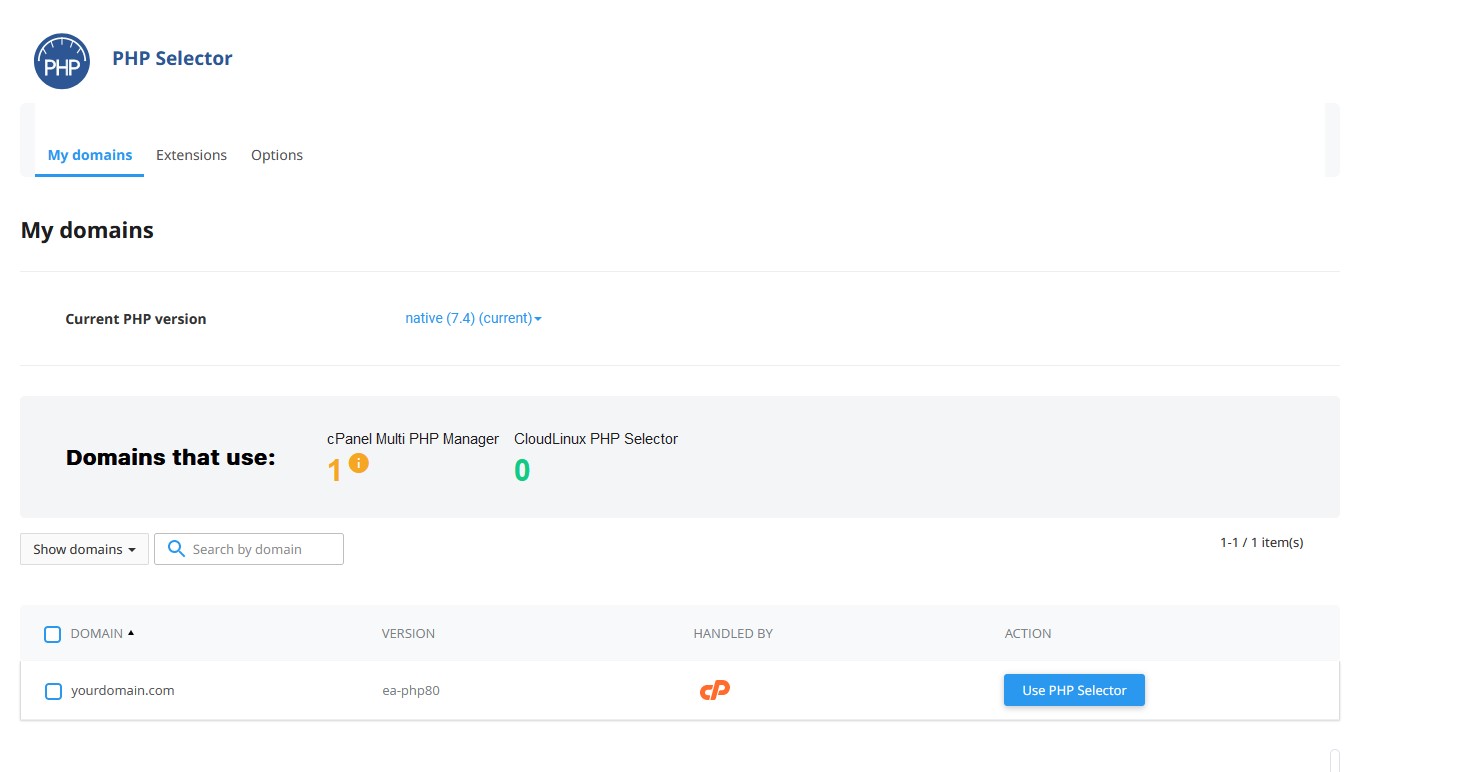

3. Under "Action", click Use PHP Selector.
4. A popup will appear, click Confirm.
5. Click Apply to save the changes.
6. Select your desired PHP version from "Current PHP version".
7. Click Set as current to save the changes.

You may personalize the PHP options and extensions by navigating to Extensions tab and Options tab.

Note: Please note that this feature is not available by default, please contact our support team for further enquiry regarding this feature.

  • 13 أعضاء وجدوا هذه المقالة مفيدة
هل كانت المقالة مفيدة ؟

مقالات مشابهة

cPanel: Redirect URL

URL direction, also known as URL forwarding allows you to redirect your website traffic from one...

SolidCP & MSPControl: Redirect URL

Redirect URL will redirect your website to the destination URL.Please follow the steps below to...

Convert .htaccess rewrite rules to web.config

You can use the Import Rules function in IIS to import rewrite rules coding from .htaccess file...

PHP Fatal error: Cannot redeclare quoted_printable_encode()

When encounter the following PHP error:PHP Fatal error:  Cannot redeclare...

SolidCP & MSPControl: Enable AWStats on your website

Please follow the steps below to add and view your website statistics.1. Log in to your hosting...