
cPanel: Change PHP Version via Select PHP Version

With Select PHP Version (also known as PHP Selector), you can change PHP version and enable specific options or extensions for your website.
Please follow the steps below to change the PHP version for your website.

1. Login to your hosting control panel (EG. http://yourdomain.com/cpanel).
2. Click Select PHP Version icon under "Software" section.
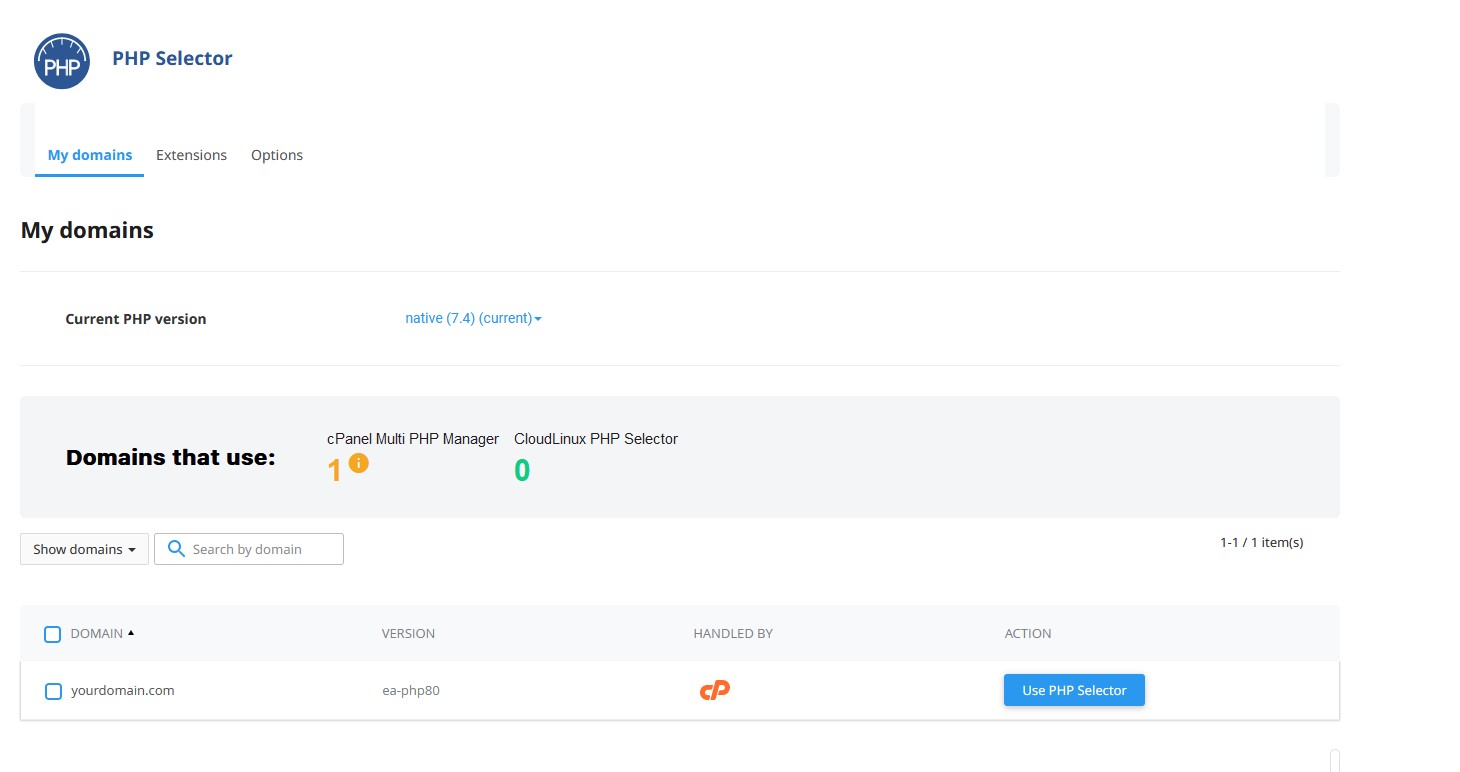

3. Under "Action", click Use PHP Selector.
4. A popup will appear, click Confirm.
5. Click Apply to save the changes.
6. Select your desired PHP version from "Current PHP version".
7. Click Set as current to save the changes.

You may personalize the PHP options and extensions by navigating to Extensions tab and Options tab.

Note: Please note that this feature is not available by default, please contact our support team for further enquiry regarding this feature.

  • 0 Users Found This Useful
Was this answer helpful?

Related Articles

SolidCP & MSPControl: Point domain aliases

Please follow the steps below to point your domain aliases to an existing domain.1. Log in to...

Warning: ini_set() has been disabled for security reasons

Warning: ini_set() has been disabled for security reasonsDuring some script installation below...

SolidCP & MSPControl: Enable AWStats on your website

Please follow the steps below to add and view your website statistics.1. Log in to your hosting...

Website transfer requirement

Website transfer is a process to transfer your website content from your current hosting provider...

PHP Fatal error: Cannot redeclare quoted_printable_encode()

When encounter the following PHP error:PHP Fatal error:  Cannot redeclare...