
Manage Team is a feature to create and assign additional cPanel user to manage specific roles or services such as email, FTP, or database.
The user roles available in cPanel are as follows.
| Role | Description |
| Administrator | The administrator role includes all privileges of the other team user roles |
| Database | This role enables a team user to access tools and modify files related to database management for the team owner's cPanel account |
| This role enables a team user to access tools and modify files related to email administration for the team owner's cPanel account (except Global Email Filters and Email Filters interfaces) | |
| Web | This role enables a team user to access tools and modify files related to website functionality. |
Team owners can also assign the following services to team users.
| Service | Description |
| This service gives the team user access to email for the cPanel account. To enable the Email service, set the toggle to Enabled, then set your desired quota | |
| FTP | This service gives the team user access to website files for the cPanel account. To enable the FTP service, set the toggle to Enabled, then set your desired quota. If desired, you may enter a name for the home directory in the Home Directory text box. |
| Web Disk | This service allows the team user to manage and manipulate files on your server in multiple types of interfaces (for example, your computer, mobile device, or certain types of software). To enable the Web Disk service, set the toggle to Enabled. If desired, you may enter a name for the home directory in the Home Directory text box. Then, set your desired permissions. You may choose either Read-Write or Read-Only permissions. |
Please follow the steps below to create team user.
1. Login to your cPanel control panel (EG. http://yourdomain.com/cpanel).
2. Under "Preferences" section, click Manage Team icon.
3. Click on Create Team User button.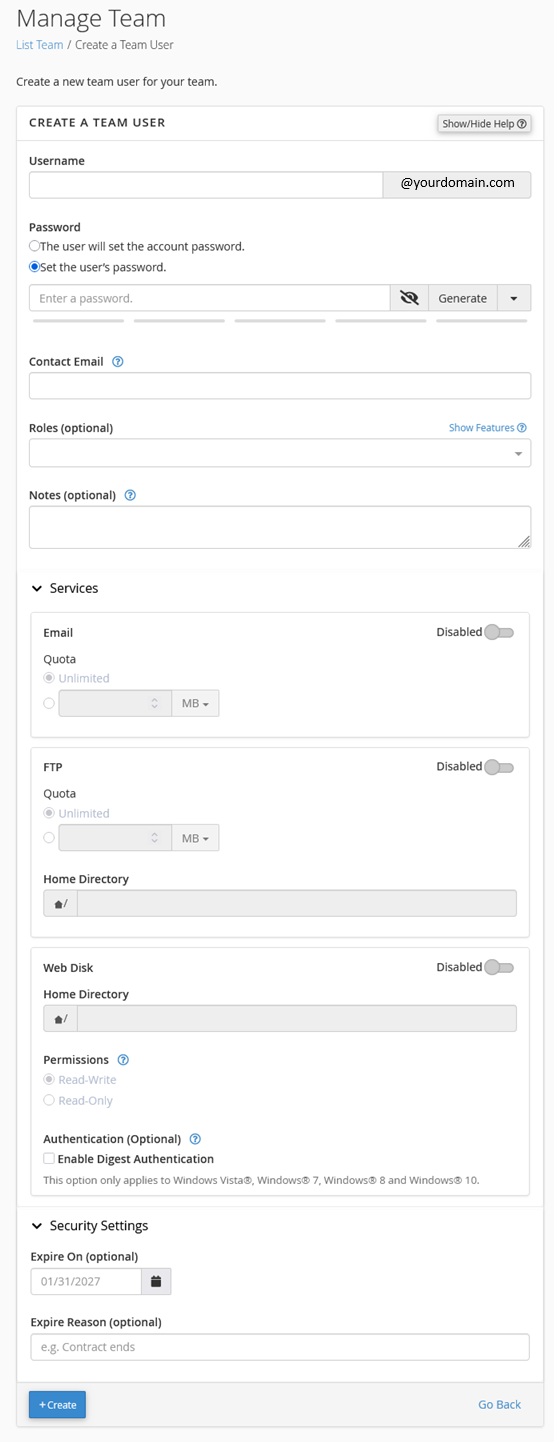
4. Fill in the following information.
Mandatory Settings
Username: [ENTER TEAM USERNAME]
Password: [ENTER TEAM USER PASSWORD]
Contact Email: [ENTER TEAM USER EMAIL ADDRESS]
Roles: [SELECT THE ROLE FOR THE USER]
Tick on the checkbox "I have read and understood the security risk warning."
Optional Settings
Services: [ENABLE THE SERVICE FOR THE USER]
Security Settings: [SET THE ACCOUNT EXPIRY DATE]
5. Click Create to create the team user.
6. Team user may access to the cPanel using the newly created credentials.
Note: This feature is available in shared hosting environment only.